MP4
H.264 · AAC
Opens everywhere: phones, TVs, Macs, PCs and browsers.
Drag your videos onto the window, choose MP4, WebM or OGG and let DIGO Video do the work. Free, native to the Mac, and everything stays on your computer.
You don’t need to know what codecs and bitrates are: choose where the video is going, and DIGO Video takes care of the rest.
One, ten or a whole folder: onto the window, onto the icon in the Dock, or with “Open With” from the Finder. Reads MOV, MP4, MKV, AVI, HEVC, AV1 and many more.
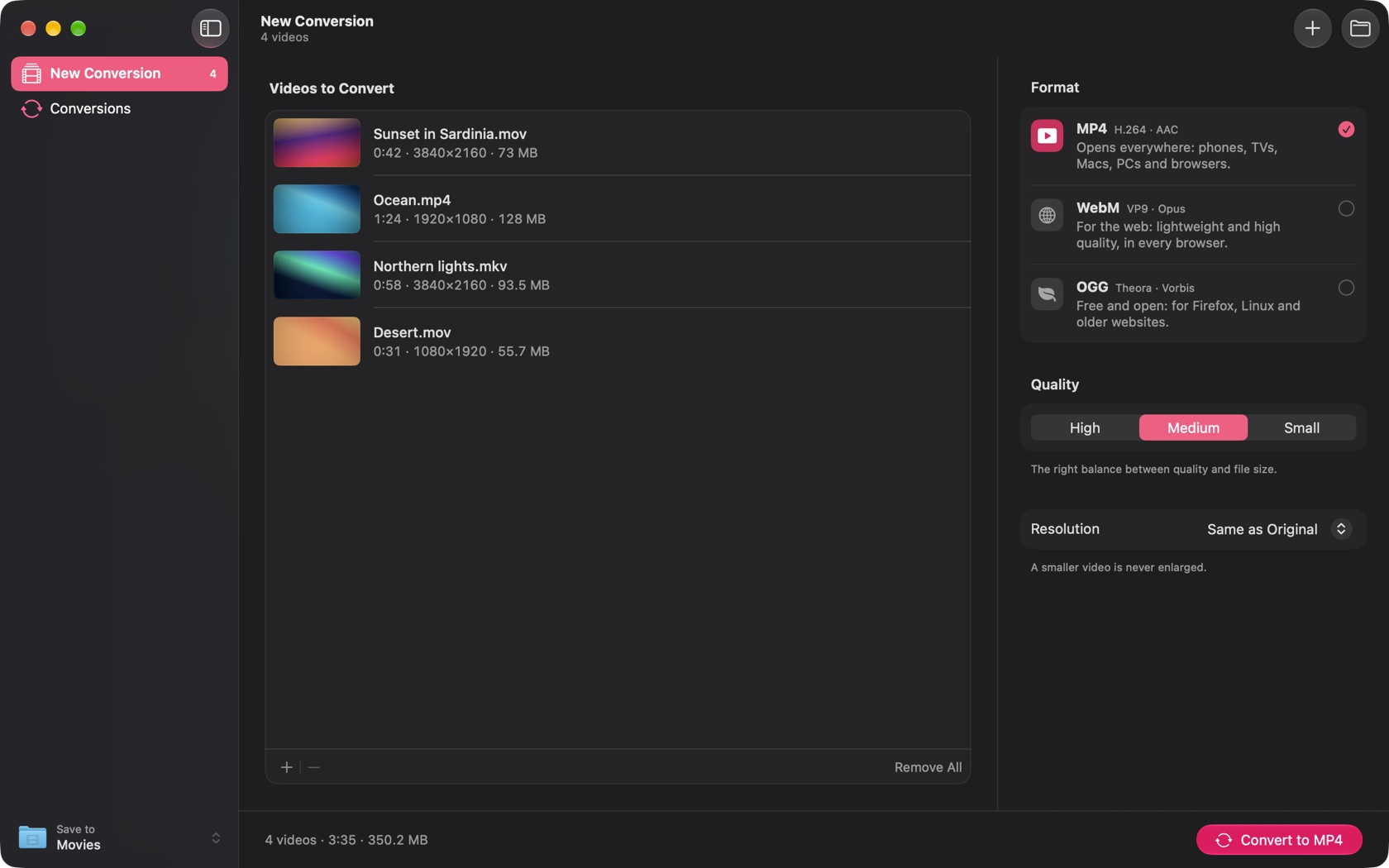
MP4, WebM or OGG. High, Medium or Small quality, and the resolution: same as the original, Full HD, HD or 480p. A smaller video is never enlarged.
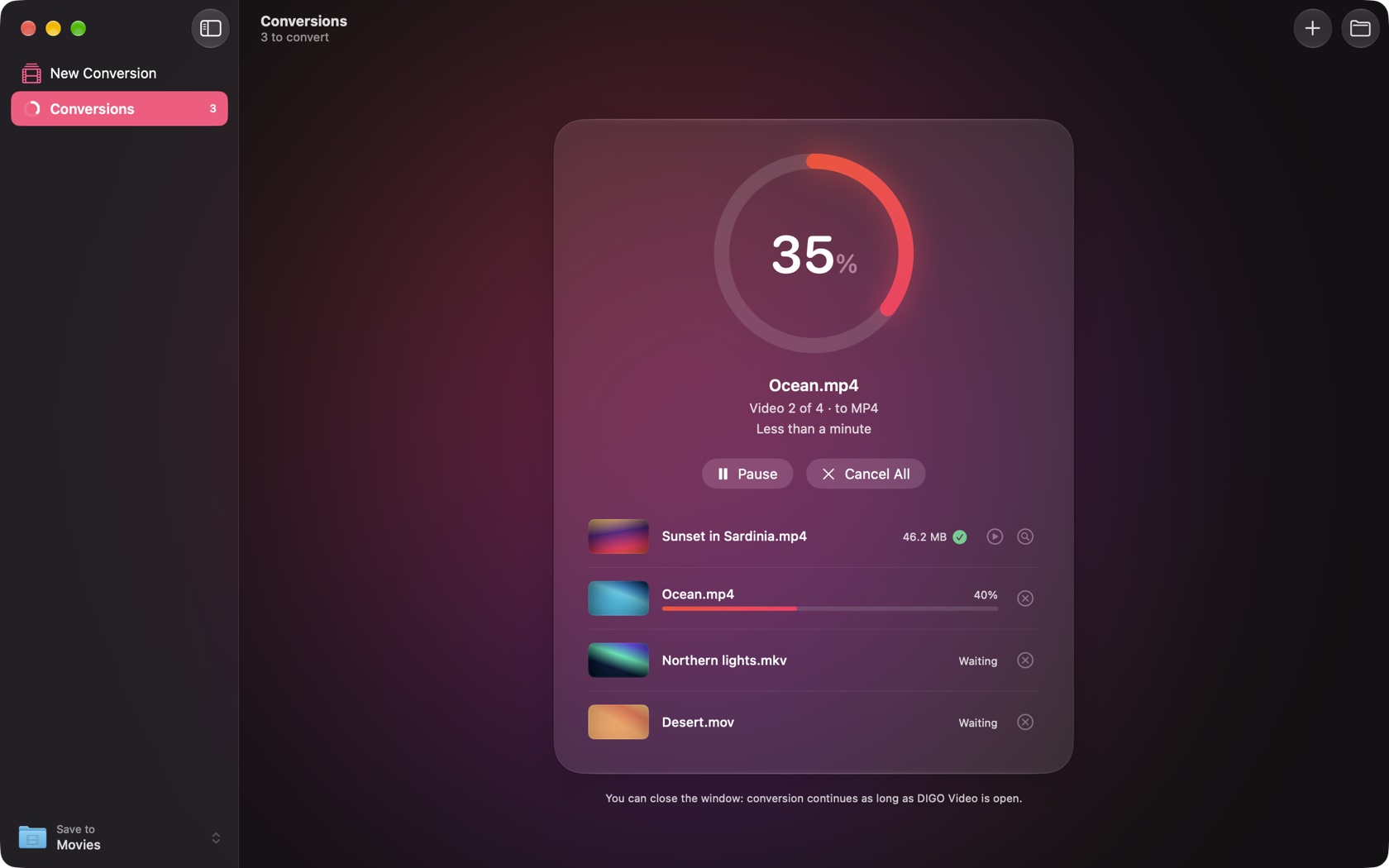
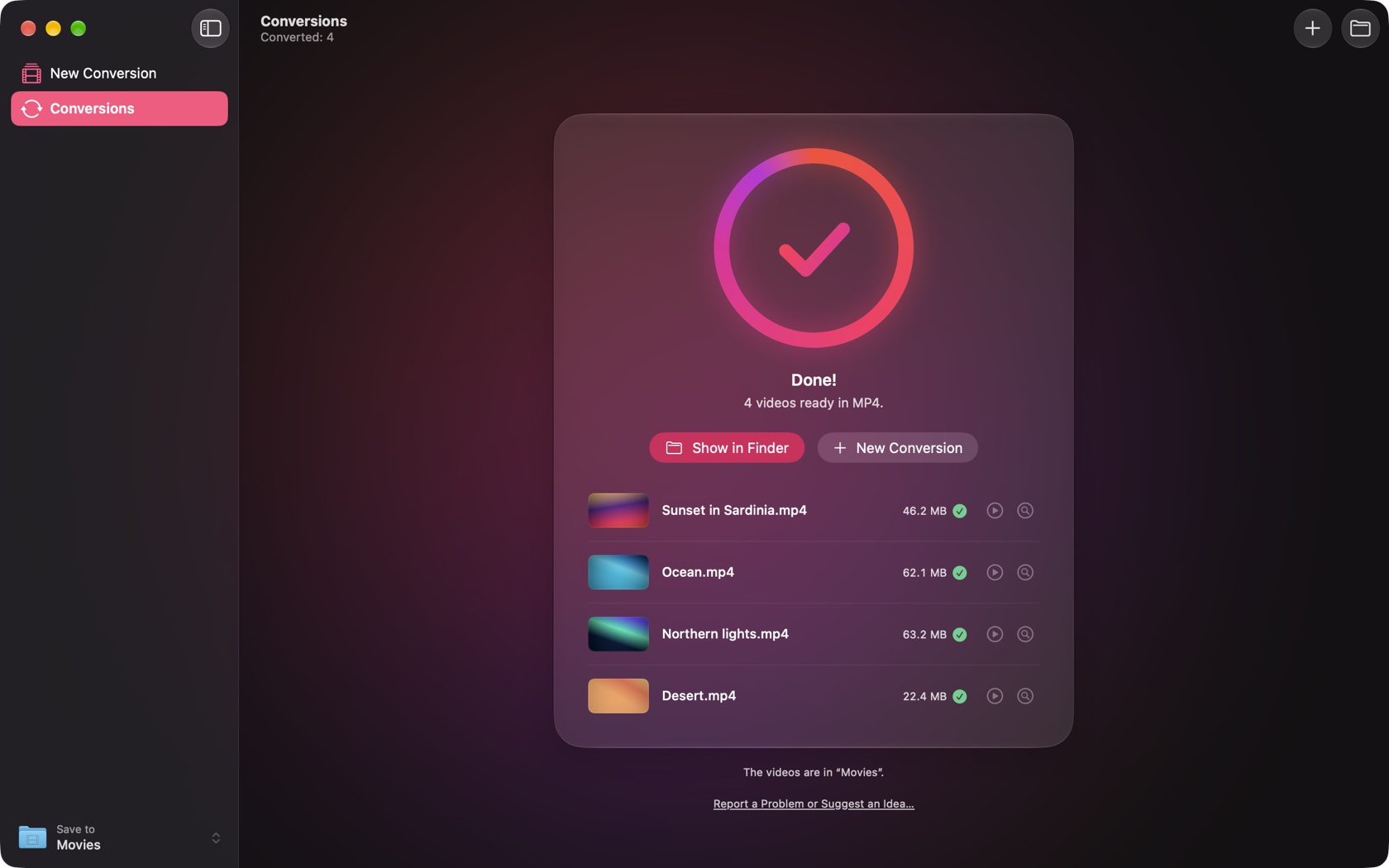
Converts one video at a time, with progress and the time remaining. Finished files land in Movies, even if you close the window.
Choose based on where the video is going. DIGO Video picks the right settings.
H.264 · AAC
Opens everywhere: phones, TVs, Macs, PCs and browsers.
VP9 · Opus
For the web: lightweight and high quality, in every browser.
Theora · Vorbis
Free and open: for Firefox, Linux and older websites.
Colors, orientation, audio, queue: DIGO Video handles what you’d usually have to fix by hand.
HDR videos from iPhone and cameras (HLG and HDR10) come out with the right colors on ordinary displays too.
Orientation is preserved, and multichannel audio becomes stereo when needed.
One video at a time, with progress and the time remaining. Pause, resume, cancel, or retry the ones that failed.
Close the window and the queue keeps going, as long as DIGO Video is open.
Finished files land in Movies or in the folder you choose, and existing files are never touched.
Native to macOS. For MP4 it uses the Mac’s hardware encoder.
MOV, MP4, MKV, AVI, HEVC, AV1 and many more: the formats of cameras and smartphones.
Light and dark appearance, VoiceOver, Reduce Motion and Increase Contrast.
Your videos never leave your Mac. DIGO Video doesn’t connect to the internet, has no analytics or ads, and collects no data.
App Store privacy label: Data Not Collected
Nothing. It’s free, with no in-app purchases and no ads.
Macs with Apple silicon and macOS 26 or later.
MP4 if the video has to open everywhere: phones, TVs, computers and browsers. WebM to publish it on the web, lightweight and high quality. OGG if you need a free and open format, for Firefox, Linux or older websites.
To the Movies folder, or to the one you choose with “Save to” at the bottom of the sidebar. DIGO Video never overwrites a file that already exists.
No. The conversion happens entirely on your Mac: DIGO Video doesn’t connect to the internet, doesn’t ask for an account and collects no data.
Yes: add as many videos as you like, even whole folders. It converts them one after another, and you can pause, resume or cancel a single video or the whole queue.
HDR videos in HLG and HDR10, like those from iPhone and many cameras, come out with the right colors on ordinary displays too.
FFmpeg (LGPL 2.1), included in the app. The source code and build scripts are on the support page.
DIGO Video is free on the Mac App Store, for Macs with Apple silicon and macOS 26 or later.
Download on the Mac App Store